Pinterest Pin Image Automation
By Kerrie Legend · · 12 min read
I.Create Pinterest Pin Images in Seconds
Creating pin images manually is a productivity killer. You open Canva, tweak a template, export the file, upload it, write a description, schedule the pin. Repeat that thirty times a week and you’ve surrendered thirty hours of your month to a task that should take thirty minutes.
That math doesn’t work for a solo business owner. It never did.
So I broke the system. Not with Canva’s bulk upload data tables—everyone already knows about that, and it’s clunky at best. What I built instead is a fully automated pipeline using Placid, Make.com, and Airtable that generates complete, scroll-stopping pin images in seconds, feeds them into my scheduling workflow, and keeps my Pinterest feed alive without me touching a single design file.
No design skills required. No manual uploads. No Canva export queue. The system runs while you sleep, while you write, while you take your dog for a walk. Traffic keeps coming. Pins keep going out. Your feed stays fresh.
This is how it works.
II.Why Manual Pin Creation Is Costing You More Than Time
Before we get into the stack, let’s talk about the actual problem, because it’s bigger than “pinning takes too long.”
Pinterest rewards consistency. The algorithm doesn’t care that you had a busy week or that your Canva subscription glitched or that you ran out of ideas on a Tuesday. It rewards accounts that post regularly, with fresh images, across a range of content. Pull back for two weeks and you’ll feel it in your traffic for a month.
That’s the trap most bloggers and business owners fall into. They build momentum, burn out on the manual work, go quiet, and then have to rebuild from scratch. The content was never the problem. The production bottleneck was.
The fix isn’t to work harder or batch more aggressively or hire a virtual assistant to sit in Canva all day. The fix is to remove yourself from the production process entirely and let automation handle the repetitive part.
That’s exactly what this system does.
III.The Stack: Three Tools, One Seamless Pipeline
The automated system runs on three tools working in sequence. Each one handles a specific job, and together they eliminate every manual step between “I have a blog post” and “my pin is scheduled and live.”
Airtable is your command center. Every pin you want to create lives here as a record: the title, the URL, the description, the category, any custom text you want layered onto the image. You fill in a row. That’s your only job.
Make.com is the engine. It watches Airtable for new records, pulls the data, sends it to Placid, receives the finished image, and routes it wherever it needs to go. Make.com handles the logic, the triggers, and the connections between every tool in the pipeline.
Placid is the image generator. You build a template once inside Placid’s editor, define which text and image fields are dynamic, and then Placid accepts data from Make.com and renders a finished, pixel-perfect pin image in seconds. No design work required after the initial setup.
I added an automated 2-pins-per-hour scheduler directly in Make.com so I don’t even need a scheduler. Cost reduction? Absolutely. Use Pinterest’s native scheduler at the end of the chain and you have a fully hands-off system from data entry to published pin.
IV.Setting Up Airtable as Your Content Hub
Airtable is where everything starts, and getting the structure right upfront saves you time every single week after.
Create a new base and call it whatever makes sense for your workflow. Inside that base, build a table called Pins with the following fields:
Title (Single line text): The headline that will appear on your pin image. Keep this punchy. Pinterest is a visual search engine and your title text does heavy lifting.
URL (URL field): The destination link. Where does this pin go when someone clicks it?
Description (Long text): Your pin description for the platform. This is separate from the image text. Write it keyword-rich and specific.
Category (Single select): Useful if you run multiple content categories or multiple blogs. You can use this field to trigger different Placid templates in Make.com depending on the content type.
Image URL (URL field): If your template includes a background image pulled from your blog post or product, drop the URL here. Placid will fetch it directly.
Status (Single select): This is your trigger field. Create three options: Draft, Ready, and Sent. When you flip a record from Draft to Ready, Make.com fires. When the image is generated and scheduled, the automation flips it to Sent so nothing runs twice.
Generated Image URL (URL field): Make.com writes back to this field with the finished Placid image URL once it’s been created. Useful for records and for passing the image into scheduling tools.
That’s the base structure. You can add fields for seasonal campaigns, niche targeting, or A/B test variations once you’re comfortable with the core setup. Start simple and build out from there.
V.Building Your Placid Template
Placid is where your visual brand lives in this system. You design a template once, connect the dynamic fields, and from that point forward every pin image generated from that template maintains your brand consistency automatically.
Log into Placid and create a new template at the Pinterest pin dimensions: 1000 x 1500 pixels is the current best practice for vertical pins.
Build your design inside Placid’s canvas editor. You have full control over fonts, colors, background images, overlays, and layout. This is the one place where design work happens, and it only happens once per template. If you have brand guidelines, apply them here. If you want multiple template styles for seasonal content or different content categories, create multiple templates and reference them by ID in Make.com.
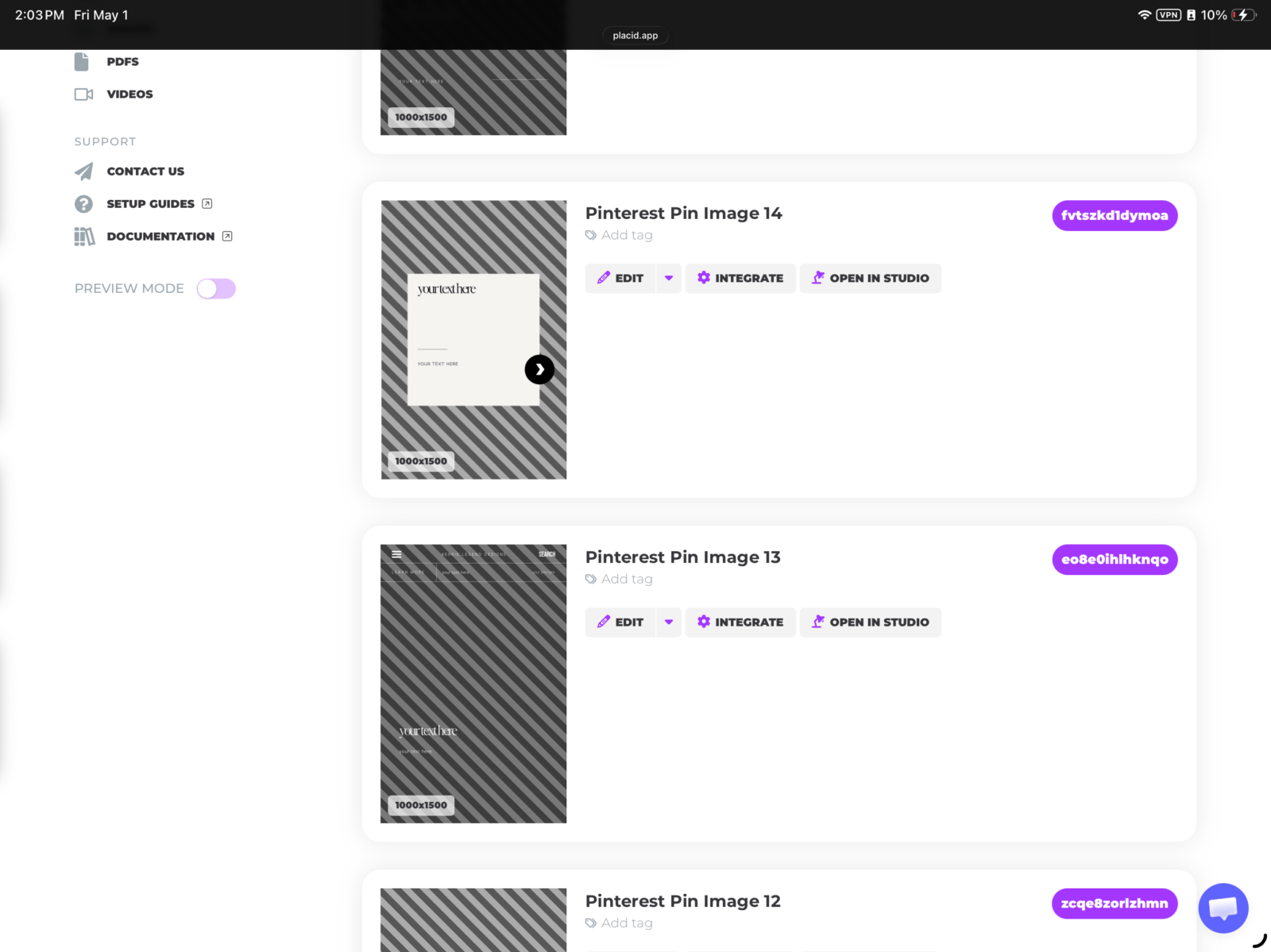
The key step is identifying your dynamic fields. These are the elements that change from pin to pin. At minimum you’ll set up:
A text layer for your pin title. Give it a clear layer name like pin_title because you’ll reference it in Make.com by this name. Set your font, size, color, and maximum character count. Placid will handle text wrapping automatically within the bounds you define.
A text layer for a secondary line if you want one. A tagline, your website URL, a call to action. Same process, different layer name.
An image layer if your template pulls in a background or featured image from your blog post. Name it background_image or featured_image and point it to an external URL source.
Once your template is built, grab the template ID from Placid’s settings. You’ll need it in Make.com. Placid also provides an API key from your account dashboard. Keep both handy.
VI.Automating the Pipeline in Make.com
This is where the system comes alive. Make.com connects Airtable to Placid, handles the trigger logic, and closes the loop by writing results back to your database.
Create a new scenario in Make.com. Your scenario is going to run through the following sequence of steps:
Step 1: Watch Airtable Records
Add an Airtable module and select “Watch Records.” Connect your Airtable account, select your base and your Pins table, and configure the trigger to fire when the Status field changes to Ready.
Set your polling interval. Make.com checks Airtable on a schedule—every 15 minutes is a solid starting point. If you want near-instant processing, upgrade to a shorter interval, but for most content workflows, 15 minutes is more than fast enough.
Step 2: Generate the Image in Placid
Add a Placid module and select “Create Image.” Connect your Placid account using the API key from your Placid dashboard.
Select your template using the template ID you grabbed earlier.
Now map your Airtable fields to your Placid dynamic layers. This is the critical connection:
- Map your Airtable Title field to the
pin_titlelayer in Placid - Map your Airtable Image URL field to the
background_imageorfeatured_imagelayer - Map any secondary text fields to their corresponding Placid layers
When Make.com runs, it takes the data from your Airtable record and sends it to Placid with these mappings. Placid renders the image and returns a URL pointing to the finished file.
Step 3: Update the Airtable Record
Add another Airtable module, this time “Update a Record.” Map it to the same record that triggered the scenario and do two things:
- Write the generated image URL from Placid into your Generated Image URL field
- Change the Status field from Ready to Sent
This closes the loop and prevents the record from triggering again on the next polling cycle.
Step 4: Send to Your Scheduler (Optional but Recommended)
If you use Tailwind, Make.com has a native Tailwind integration. Add a Tailwind module after Step 3, pass in the generated image URL and your pin description, set the destination board, and let Tailwind handle the scheduling queue.
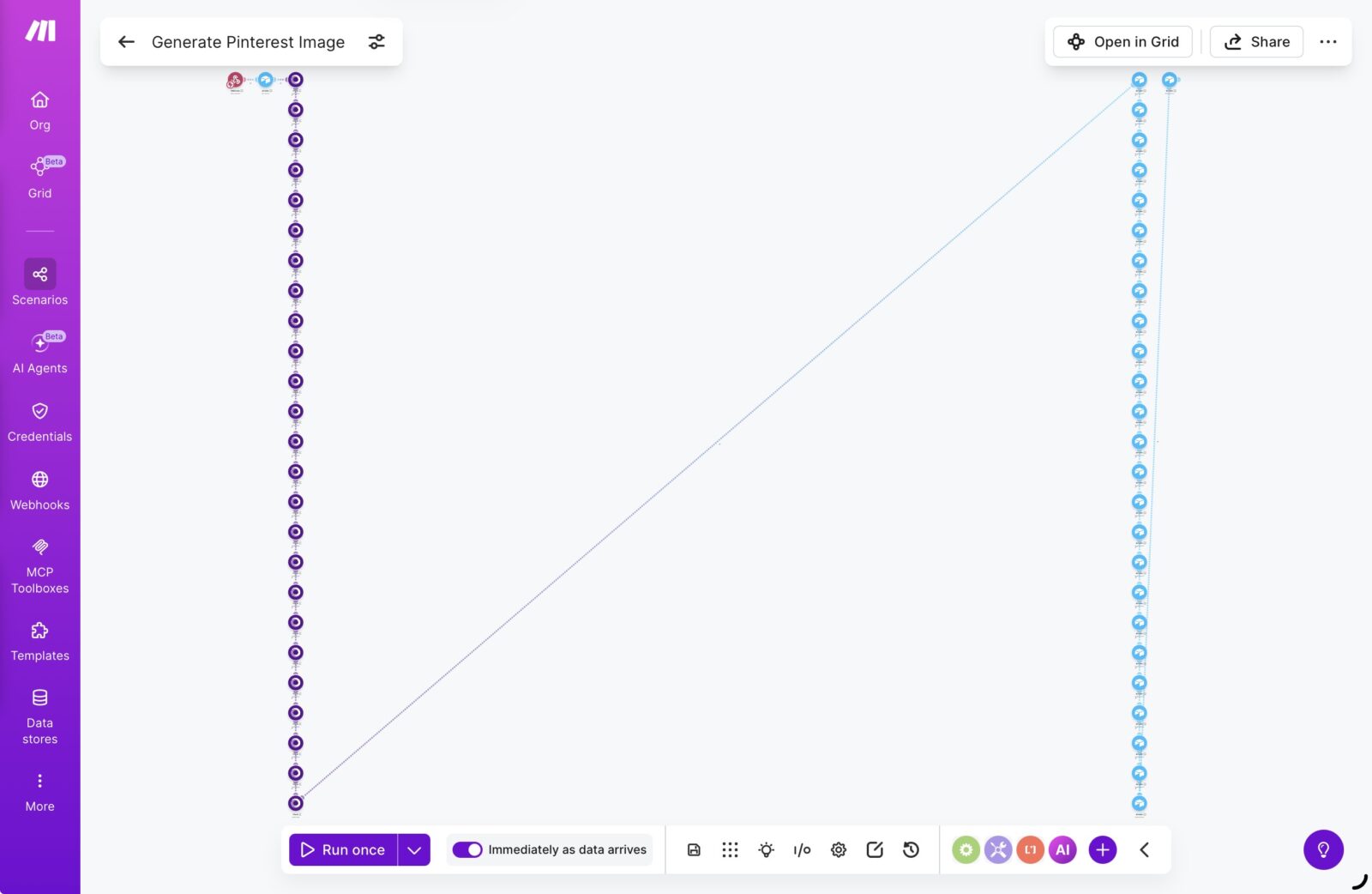
Screenshot
If you use Pinterest’s native scheduler or a different tool, you can use Make.com’s HTTP module to hit the relevant API directly, or use a webhook to pass the data to another automation.
Save your scenario, turn it on, and test it with a single record. Flip one Airtable row from Draft to Ready and watch the entire pipeline execute. Within seconds you’ll see the finished pin image URL appear in your Airtable record and your scheduler queue.
That’s the whole system.
VII.What the Workflow Looks Like Day-to-Day
Once the automation is live, your daily interaction with Pinterest looks like this:
You open Airtable. You add a new row. You type a title, paste your blog post URL, drop in a description, add the featured image URL if your template uses one, and flip the Status to Ready. You close Airtable.
Make.com picks it up within fifteen minutes. Placid generates the image. The URL gets written back to your record. The pin gets queued in your scheduler.
That’s it. The whole process on your end takes under two minutes per pin. If you batch ten pins at once in Airtable on a Monday morning, you’ve got ten fresh images queued and ready before your coffee is finished.
No Canva. No exports. No uploads. No formatting. No manual scheduling.
The system handles the production. You handle the strategy.
VIII.Scaling the System Without Adding Work
Here’s where this setup pays real dividends. Because everything runs through a database and a template, scaling doesn’t require proportionally more effort.
Want to run five different pin styles? Build five Placid templates and add a Template ID field to your Airtable base. Add a router in Make.com that selects the right template based on the category field in your record. Now you get design variety across your feed without any extra manual work.
Want to pin the same blog post multiple times with different headlines? Add multiple rows in Airtable pointing to the same URL with different title variations. Each one generates a unique image. Pinterest rewards fresh images on existing URLs, so this is a legitimate traffic strategy, not a hack.
Want to run pins for multiple websites? Duplicate your Make.com scenario, point it at a different Airtable base, connect a different set of Placid templates. Separate pipelines, same automation logic. You’re managing content strategy in a spreadsheet and letting the machines do the rest.
Want to add AI-generated titles and descriptions? Add a Make.com module before the Placid step that calls an AI API, feeds it your blog post URL, and generates the pin title and description automatically. Now you’re not even writing the copy—you’re approving it.
The architecture scales because each component has a clean, single job. Airtable stores. Make.com orchestrates. Placid renders. Swap out or upgrade any single component without breaking the rest.
IX.Common Questions (And Honest Answers)
Do I need to know how to code?
No. Make.com is a no-code automation platform. Placid has a visual template editor. Airtable is a spreadsheet with extra features. If you can set up a Zapier automation or build a Notion database, you can build this system.
What does it cost?
Make.com has a free tier that covers a limited number of operations per month. For a serious Pinterest strategy you’ll likely want a paid plan, which starts at a very reasonable monthly rate. Placid charges per image generated, with pricing tiers based on volume—most content creators land comfortably in the lower tiers. Airtable has a free plan that works fine for this use case until you hit larger record counts.
Total cost for a mid-volume Pinterest strategy running through this stack is typically well under fifty dollars a month. Compare that against the hourly value of the time you’d spend creating images manually.
What if I want to change my pin design?
Update your Placid template. Every future image generated from that template uses the updated design instantly. You don’t touch Make.com or Airtable. One edit in one place updates every future pin in your pipeline.
Can I use my own photography or stock images as backgrounds?
Yes. Any image with a publicly accessible URL works. Host images in your media library, Dropbox, Google Drive, or any cloud storage with public sharing enabled, and paste the URL into your Airtable record.
Does this work for video pins?
This specific setup is optimized for static image pins. Placid does support animated outputs in some formats, but video pin automation is a different workflow requiring different tools.
X.Why This Beats Canva Bulk Upload
Canva’s bulk upload feature using data tables is well-known at this point. You build a template, create a CSV, upload it, and Canva generates variations. It works, and it’s not useless.
But it’s not automated. You still manually export the CSV. You still manually trigger the upload. You still manually download or schedule the outputs. It’s batching with extra steps, not automation.
The Placid, Make.com, and Airtable pipeline is genuinely automated. You add data to a database and the system takes it from there. No trigger required from you. No download step. No manual scheduling. The gap between “I added this record” and “this pin is scheduled” is measured in minutes, not hours.
It’s also more flexible. Canva’s bulk upload is locked to Canva templates. This system works with any Placid template, which you can design to look like anything. You’re not constrained by Canva’s interface or export formats.
And it scales differently. Adding one thousand pins to a Canva bulk upload is a project. Adding one thousand rows to Airtable is a copy-paste operation that Make.com processes automatically in the background.
XI.Getting Started Without Overwhelming Yourself
The easiest way to build this is in stages rather than all at once.
Start with Airtable. Build your base, create the fields, add ten records manually. Get comfortable with the structure before you connect anything else.
Then build your Placid template. One template, one design. Test it manually in Placid’s interface by entering sample data and generating a preview image. Make sure it looks right before you connect automation to it.
Then build the Make.com scenario. Start with just the Airtable watch trigger and the Placid image generation step. Test it. Confirm images are generating. Then add the record update step. Then add the scheduler integration.
Build it incrementally and test each stage. This approach means when something doesn’t work as expected, you know exactly which component needs attention.
Most people with no prior automation experience can have this system running inside a weekend. The learning curve is real but it’s short.
XII.Final Thoughts
Pinterest is a long game. Pins that you publish today drive traffic for months, sometimes years. The platform’s search-based nature means content compounds in a way that other social platforms simply don’t replicate.
The creators winning on Pinterest right now aren’t the ones spending the most hours in Canva. They’re the ones who treated Pinterest as a system problem and built infrastructure to solve it. Consistent output, fresh images, keyword-optimized descriptions, and a pipeline that doesn’t require them to show up every day to keep it running.
That’s the actual competitive advantage. Not a prettier pin template. Not a better color palette. A production system that removes the bottleneck between your content and your audience.
Placid, Make.com, and Airtable give you that system. The setup takes a weekend. The payoff runs indefinitely.
Your Pinterest feed doesn’t have to depend on your energy levels, your schedule, or how much time you managed to carve out this week. Build the automation once. Let it run. Keep your traffic consistent and your time where it actually belongs—on the work only you can do.

Written by
Kerrie Legend
Author, writer, designer. Twenty years in publishing and design, and a firm view on semicolons.
More about Kerrie →